
iRacingToolkit is a free Windows application that provides multiple tools for iRacing. It includes a fuel calculator, session and lap logs, stats database, telemetry analysis, iRacing INI file editor, RPM gear shift beep and application start-up helper. It has been designed as a portable app with no dependencies and minimal impact on system resources.
Features
General
- Free and portable app with no installation or software dependencies.
- Simple setup so you’re up and running with just a few clicks.
- Designed to use minimal system resources.
Fuel Calculator
- Automatically calculates and sets the required fuel for every pit stop during a race.
- Saves fuel usage and lap time data from every sessions lap to improve accuracy of future calculations.
- Displays the fuel strategy options pre-race.
- Simulate a full race pitstop strategy in an offline test session.
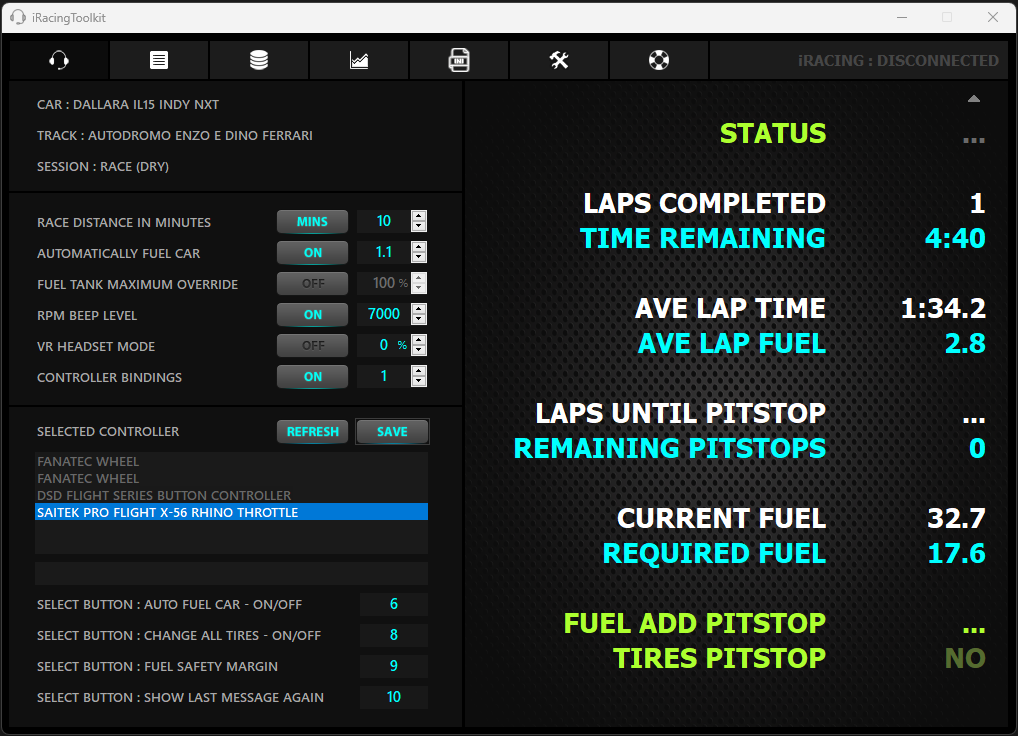
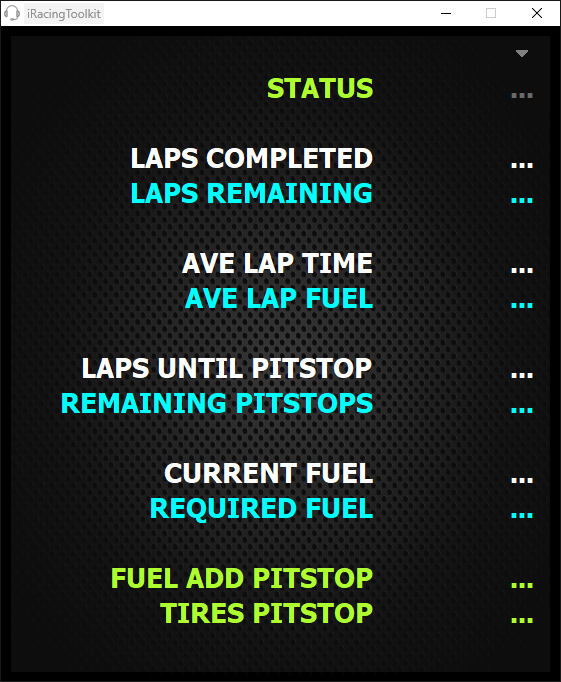
- Desktop dashboard showing all lap, fuel and pit stop information.
- Shows all info In-car and on screen for full compatibility with VR.
- Message info includes laps until pit stop, laps until pit stop window opens, fuel saving info and more.
- Alert when fuel saving is possible to extend a stint or reach the end of the race.
- Supports fuel in litres, gallons, kilograms, pounds and imperial gallons.
- Assign a controller button to toggle automatic fuelling at pit stop.
- Assign a controller button to toggle tire change at pit stop.
- Assign a controller button to get the latest fuel and pit stop information at any time.
Session Logs & Database
- Logs session and lap data with key values for post sting or session analysis.
- Logs all data to a SQL database with 15 standard reports available.
- Lists any real life drivers detected in your session with links to their Wiki page.
- Allows for the creation of unlimited custom SQL reports.
- Session logs provide pre-race fuel and pit stop strategy information.
Telemetry
- Processes existing and new iRacing IBT files with zero configuration.
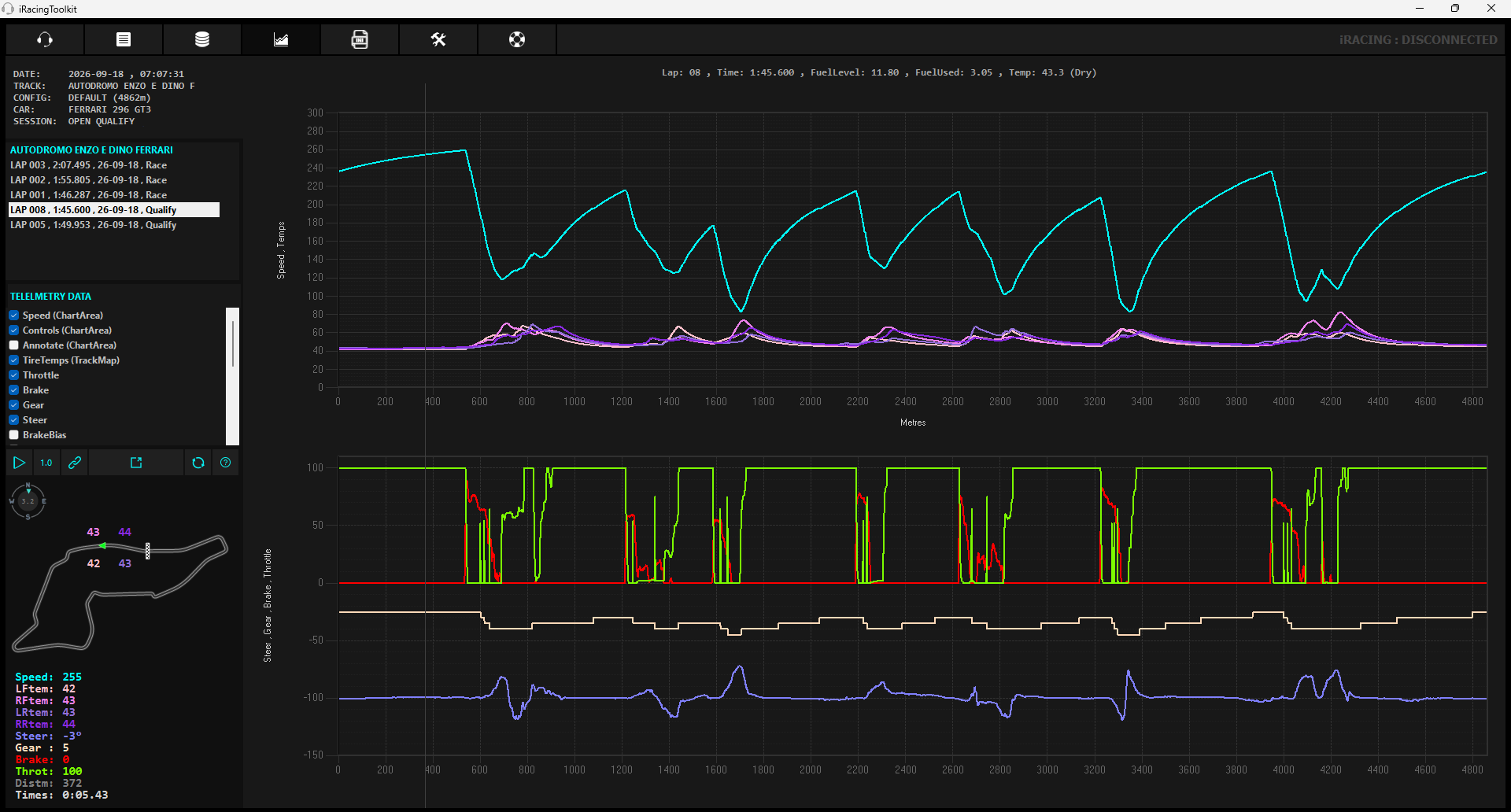
- Provides telemetry graphs for 20+ key values such as speed, throttle, brake, steering, steering torque, ride height, wind direction, brake bias, tire temps/pressures etc.
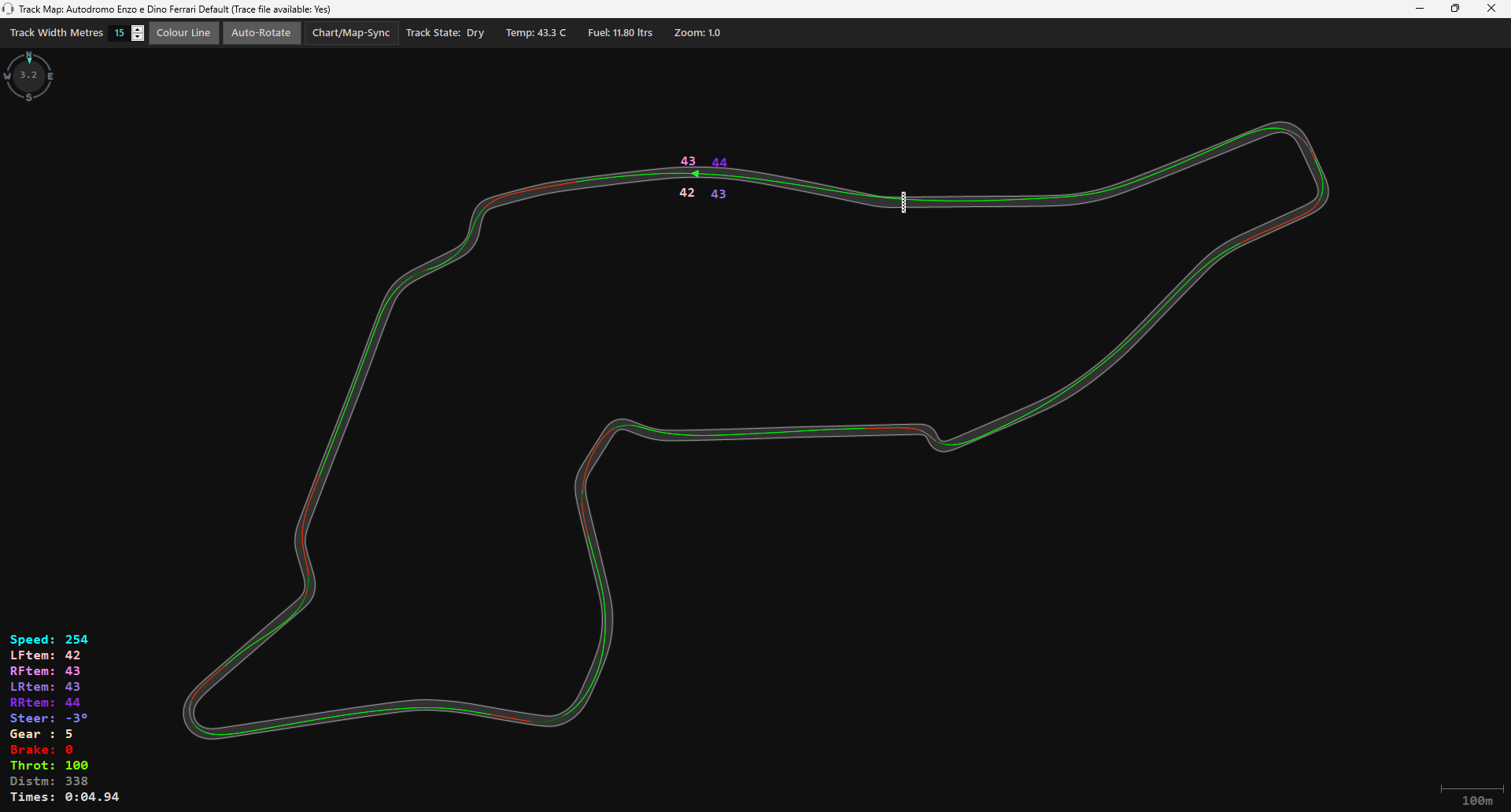
- Track map animation with real-time playback and tire temps.
- Telemetry playback sync with iRacing replays for post session analysis.
iRacing INI File Editor
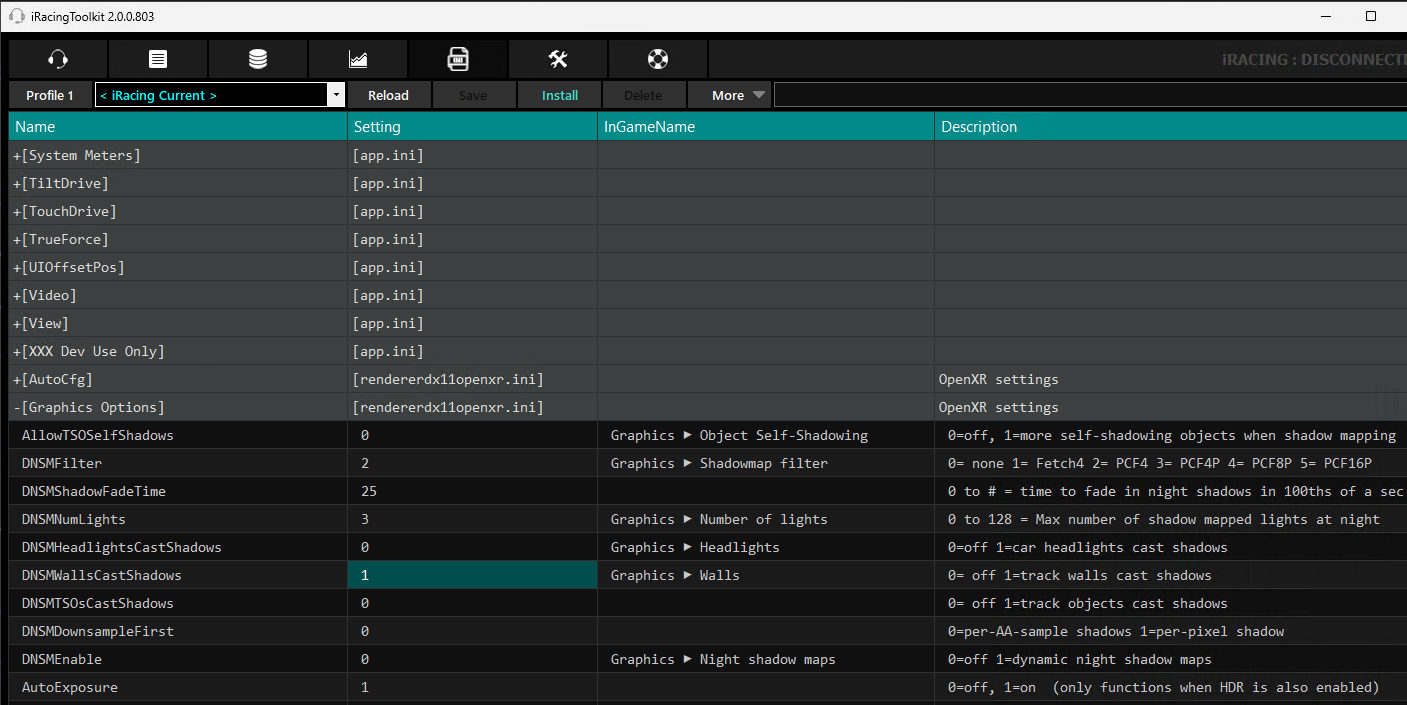
- Edit all iRacing INI files simultaneously using a simple spreadsheet like interface.
- Quick search to find any setting by just typing the first few letters of the setting.
- Create multiple profiles of settings for different use cases and easily switch between them.
- Copy, backup and compare INI profiles.
- Supports app, rendererDX11, rendererDX11OpenVR, rendererDX11Monitor, rendererDX11Oculus, core, camera INIs.
RPM Gear Shift Beep
- Set RPM level at which shift indicator beep plays while driving.
- 8 different beep sounds.
- Beep levels are saved automatically per car.
Application Start-up Helper
- Run a list of external application when iRacing starts.
- Close a list of external application when iRacing starts.
- Close a list of external application when iRacing race starts.
Download
Requirements:
Windows 11
Windows 10
iRacing Simulator
Microsoft .NET 4.8.
iRacingToolkit Version 3.5.1001.0 Beta (01 Oct 2026)
Checksum SHA-256:
6351861b6280b13e4a9e39b
3dd7d1a155a81e4e83ef9bac
ef96c564b29a373ec
iRacingToolkit Version 3.0.307.0 (07 Mar 2026)
Checksum SHA-256:
5fb0bb96f043c9c2e6f5d6
0dc56b363433ca59eb027
49d9c75a5879dee26035e
Screenshots
Main Dashboard
Compact Dashboard
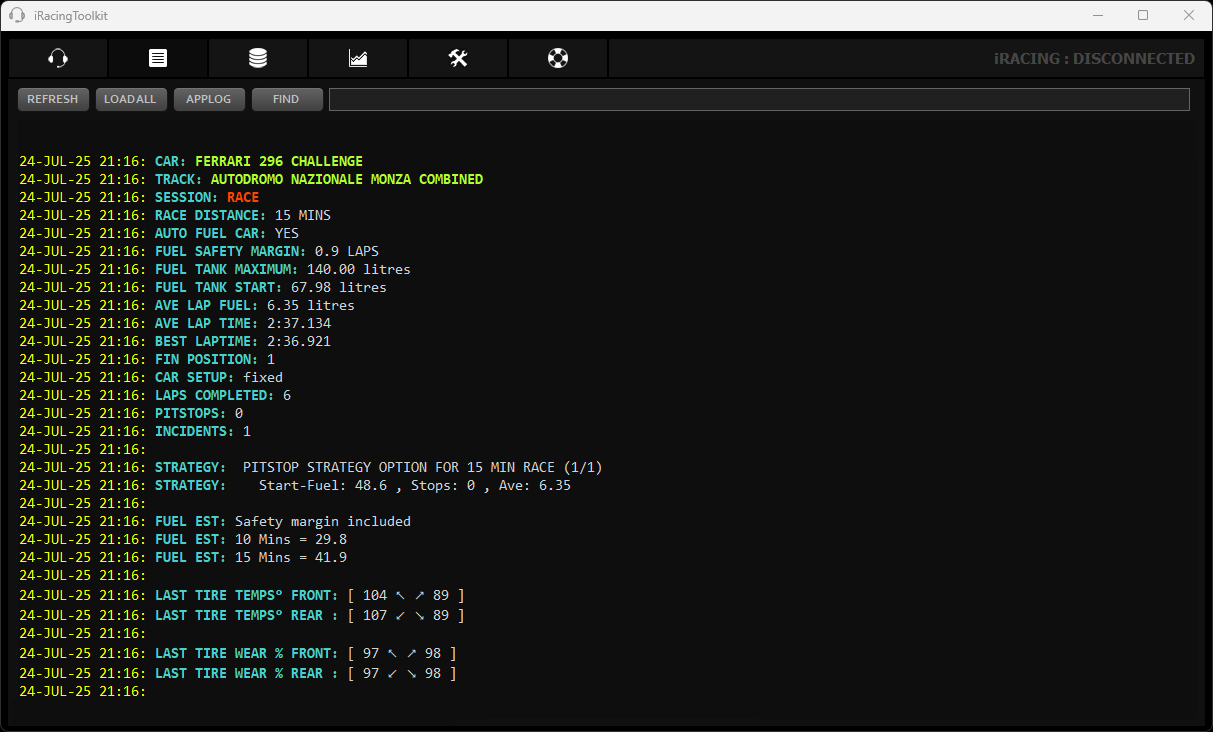
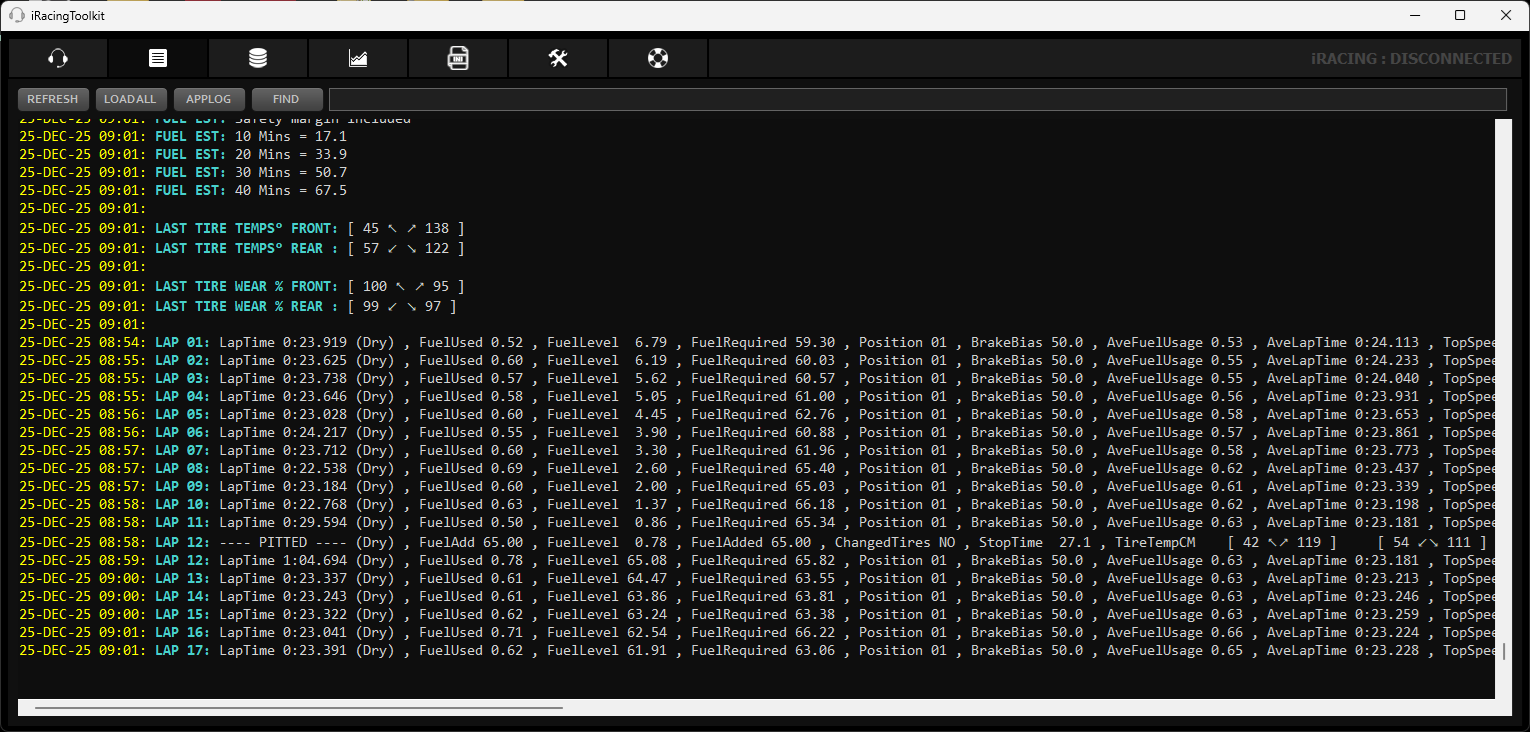
Session Logs
Sample database report
Telemetry Graphs
Track Map
INI File editor
Post Session Replay & Telemetry Sync Demo
Release notes
Controller configs and app settings are reset to default with each new version and must be reconfigured on first run.
If you are upgrading from the older iRacingAutoPit and wish to keep your existing log and DB data you will need to copy the following files
from your existing installation folder into the root iRacingToolkit\ folder:
- iRacingAutoPit-data.log		>>> app will auto-rename to >>>		iRacingToolkit-data.log
- iRacingAutoPit-sessions.log		>>> app will auto-rename to >>>		iRacingToolkit-sessions.log
- iRacingAutoPit-DB-120.sqlite3		>>> app will auto-rename to >>>		iRacingToolkit-DB-120.sqlite3
Note the following files should be backed up and restored to the root folder when doing a fresh install in future.
- iRacingToolkit-data.log
- iRacingToolkit-sessions.log
- iRacingToolkit-DB-120.sqlite3
- iRacingToolkit-RPMdata.log
If upgrading from version iRacingToolkit 3.0.307 or newer you will need to copy the following files over to your new version:
- iRacingToolkit-data.log
- iRacingToolkit-sessions.log
- iRacingToolkit-DB-120.sqlite3
- iRacingToolkit-RPMdata.log
Along with the following folders:
- Backups
- Profiles
Known Issues
- Assigning buttons on some wheels does not work for example, Fanatec DD.
- Does not work with Team racing, though I would have thought it should be able to calculate at least your stint. Havent tested.
iRacingToolkit Version 3.5.1001.0 Beta (01-OCT-2026)
- Improved the accuracy of GPS coordinates used to position the car on the track map. The car is now displayed as a triangle showing its direction of travel.
- Improved overall performance of the Telemetry tab and track map drawing.
- Improved telemetry playback smoothness and responsiveness, particularly while moving the mouse over telemetry controls.
- Improved the accuracy and placement of the wind vane on the track map.
- Improved track map scaling and orientation when resizing or using the pop-out track map.
- Added adjustable track width to the pop-out track map.
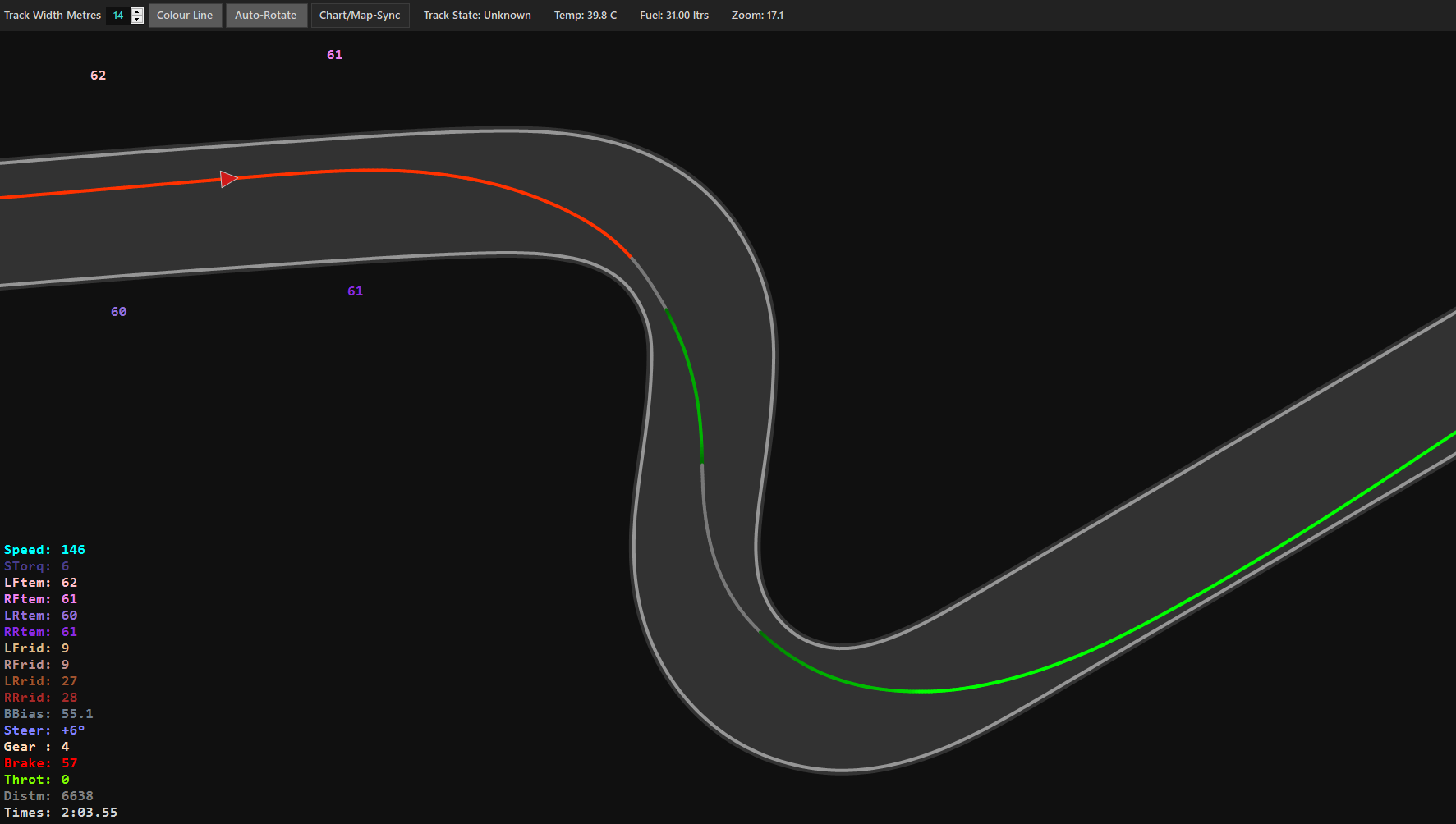
- Added zoom and pan functionality to the track map, including the option to sync the map view with the telemetry chart.
- Added a distance scale to the track map.
- Added an option to colour the driving line based on throttle, brake and coasting.
- Added a checkered start/finish line to the track map.
- Added ability to browse and select which ibt files to import.
- Fixed a bug affecting telemetry lap ordering and significantly improved telemetry lap loading speed.
- Changed the iRacing connection logic to display a message when iRacing is not active. Connection attempts will stop after 10 seconds.
- Improved controller input polling to reduce UI-thread load and improve responsiveness.
- Added additional information to messages available on the grid, including fixed setup status, brake bias, track conditions and other session information.
- Improved telemetry file indexing/loading for large lap collections.
- Improved performance of RPM Beep to fire more consistently and use built in RPM blink level as default if no saved setting.
- Improved consistency of chat messaging system.
- Improved loading performance of session logs.
- Added support for the new irsdkUTF8SessionStr UTF8 app.ini setting, correctly handling both 0 and 1.
- Fixed an issue where the iRacingToolkit process would not always exit after the application was closed.
- Fixed a number of minor bugs and made various general performance improvements.
iRacingToolkit Version 3.0.307 (07-MAR-2026)
- Integrated iRacingConfig and iRacingAutoPit into new application called iRacingToolkit.
- Added INI tab to main GUI.
- Updated INI tab with latest iRacing in game setting names.
- Updated INI tab toolbars and layout.
- Moved RPM settings into its own data log file rather than app settings so they can be easily migrated to new vesions in future.
- Improved RPM beep logic.
- Greyed out controller options instead of completely hiding the settings when controller bindings turned off.
- Changed dashboard laps/time remaining to alternate every 10 seconds.
- Recompiled underlying SDK wrapper code to improve session yaml processing.
- Further optimized iRacingToolkit to use lower average CPU usage.
- Reworked the core code logic to hopefully make it more reliable and consistent.
- Optimsed the telemetry mouse over, playback and replay link code to improve its performance.
- Improved chat message send logic to make it more stable and added ‘chat activate delay’ to settings.
- Moved DB backups to ‘Backups’ folder.
- Added PitRepairNeeded/PitOptRepairNeeded to session logs and DB. Laps completed with these will be discarded for average calcs.
- Added a spoken voice option for some of the button binding toggles so dont have to look at chat messages while driving.
- Added a couple more “box box” voice variations.
- Added some more info to the fuel estimates in session logs to indicate if rolling start fuel has been added.
- Added latest real life driver names to the session logs if detected.
- Fixed bug where controller was still polled when bindings where turned off.
- Fixed some issue with button mappings not always working when iRTK lost focus.
- Fixed issue when two iRacingSim64DX11 processes are running and iRTK uses the non active one.
- Fixed issue with degree characters not showing correctly in messages.
- Fixed some spacing issues in chat messages that arose after the release of the new iRacing GUI.
- Fixed a bunch of minor bugs.
iRacingAutopit Version 2.0.0.0802 (02 Aug 2025)
- Added telemetry play button to play back laps in real-time.
- Added telemetry playback and sync to iRacing replays.
- Added telemetry colour indicators to the car on the track map showing when on throttle or braking.
- Added telemetry option to pop out the track map to a separate window and resize.
- Added telemetry option to show tire temps directly on the cars 4 corners on the track map.
- Added telemetry laps list asterisk to fastest lap of that session.
- Added telemetry lap distance to trackmap.
- Added RPM level beep feature to aid gear changes.
- Added new button mapping to adjust fuel safety margin during race.
- Added new button mapping to discard the current lap for average calculations.
- Added new reports to Database tab and improved editing.
- Added checks in the settings to identify any changes you need to make for iRacingAutopit to work correctly.
- Added warning sound for when iRacing window has lost focus for extended periods.
- Added a clear chat command before iRacingAutopit sends chat messages in case you happen to be typing.
- Notes: iRacingAutopit always prefixes its message with “#” so that messages only go to you.
- Notes: If you are typing and iRacingAutopit sends a message it appends to yours but the “#” is not the first character so ends up in normal chat.
- Notes: The message you were typing will now be lost but at least iRacingAutopit messages will not end up in public chat.
- Improved layout of telemetry tab and processing of ibt files.
- Improved performance of all telemetry charting and trackmap components.
- Improved performance of all queries and searches in the Database tab.
- Improved performance of logs tab when there are a lot of logs.
- Updated main interface navigation to use all icons instead of text.
- Updated the handling of incorrect sim readings. App will no longer need to restart.
- Updated the sound level of some sounds.
- Updated some fuel fill rates.
- Updated GUI icons and generally cleaned up the layout of all tabs.
- Fixed bugs related to app becoming unresponsive when its performing long loading, searching etc.
- Fixed bug in iRacing’s Autofuel feature not being detected.
- Fixed bug in pitstop short-fill feature when fuel safety was less than 1 lap.
- Fixed bug where message says no laps found immediately after doing laps and getting out of car.
- Fixed bug in async logging not always flushing logs to file on exit.
- Fixed some exception logging that was filling the log.
- Fixed many minor bugs and improved performance of most of the code.
iRacingAutopit Version 1.4.0.0202 Beta (02 Feb 2025)
- Added new fuel and lap remaining calculations to take into account track wetness.
- Added track wetness change notifications.
- Added track wetness to lap logs for each lap listed.
- Added track wetness columns to database tab for laps and sessions.
- Added track wetness to telemetry lap headings.(Pre rain telemetry files will need to be reprocessed to appear. Delete ‘!Ignore-ibt-files-already-processed’ in the telemetry folder to allow this.)
- Added track wetness to session label on dashboard.
- Added pit lane length and speed limit detection to improve timed race laps remaining calculations.
- Added car fuel fill rates to improve timed race laps remaining calculations.
- Added auto fuel safety laps override for races that are fixed laps if pitting with only a few laps remaining.
- Added suffix option to startup or close exes in the settings tab. See tooltip for info.
- Added a check and warning if iRacing AutoFuel feature is enabled.
- Added warning when start fuel is much lower than pitstop strategy suggestion, such as when forgetting to reset after low fuel qualifying.
- Added seconds behind leader, driver ahead and driver behind to lap log.
- Added option to turn on/off “box this lap” voice.
- Added extra fuel to fuel strategy recommendation if its not a standing start. Is set to 0.75 of average fuel full lap.
- Added strategy info when on the grid before the start of the race and pressing the show messages mapped button.
- Added a fix for change of tires if button mapped through iRacingAutoPit. Previously selected compound is now remember and applied.
- Added a fix for invalid fuel values recorded in the DB.
- Added max telemetry files to load setting.
- Telemetry tab now remembers if you had previously selected tire temp metric in the display on restart.
- Change the way ‘fuel add’ is set for cars with large fuel add increments. If the ‘Fuel Add’ falls on the low side its auto increased to the next increment on pit approach and the fuel will be auto unchecked when amount needed reached.
- Change the way averages are calculated with later laps having more weight than earlier laps. Note this varies depending on the track conditions especially if raining.
- Changed many fuel/lap remaining calculations to be more precise and allow easier management of fuel towards the end of a stint or race where time remaining or fuel are at the margins.
- Changed the way clean laps are detected for calculation purposes. If an offtrack occurs for less than 1 second then it will still be considered a clean lap.
- Updated DB report for average laptimes to group laps by car, track config and weather.
- Updated the change all tires macro to use (T,-T) instead of (LF LR RF RR). Note that with the new wet tire compound iracing only allows this macro to work if the same tire is selected!
- Updated FuelReq in lap log for pitstop to show FuelAdd (ie fuel requested) and FuelAdded (ie fuel actually added)
- Updated the lap log data to remove non essential session data and make it a little more compact.
- Updated arrows used in lap logs to make it clearer which tires are being referred to.
- Reduced number of laps needed for pitstop calculations from 3 to 2 for tracks longer the 10Klm.
- Reduce the number of backups kept to 15 days from 30. Also the backup on the 1st of each month will not be deleted.
- Fixed bug in fuel weight not detecting correctly for some cars.
- Fixed bug in telemetry displaying incorrect track names.
- Fixed bug where sometimes iRacingAutoPit would fail to restart after iRacing restart.
- Fixed bug that caused crash on startup due to controller detection.
iRacingAutopit Version 1.3.0.9013 (01 Sep 2023)
- Added new tab which shows basic telemetry data. Any iRacing ibt files found will be processes after you get out of the car and click into this tab.
- Added the detection of very slow speed for an extended amount of time during a lap due to a crash or spin so that it is excluded from calculations.
- Added the word ‘Unlikely’ to the ‘extend stint +1 lap’ message if the fuel saving required is very high.
- Added warning if auto-fuel is off and fuel is required.
- Added custom sizing of application window for tabs that support it rather than just maximize and default.
- Added Wind data to the session logs.
- Added fuel add adjustments for a SCCA Spec Racer Ford to avoid short filling of fuel when the required add amount will cause iRacing to round down.
- Added option to show fuel messages to two decimal places.
- Update .net framework used to 4.7.2.
- Updated fuel calculations to handle a few edge cases were you might not have been given enough fuel.
- Updated some notification beeps when turning fuel/tyres on and off.
- Changed off-track laps so that they are count towards fuel calculation provided their data is similar to valid laps.
- Changed dashboard to toggle between showing time remaining and laps remaining.
- Changed pitstop strategy calculation to handle fixed setups that have starting fuel less than tank max.
- Changed the minimum safety fuel allowed to less than 1 lap.
- Fixed bug in fastest lap times DB report where it would show a laptime as 59:59.
- Fixed all bugs hopefully that may prevent iRacingAutopit from working on systems that use “,” as the their decimal seperator.
- Fixed bug in dashboard that displayed PIT text earlier than message to pit.
- Fixed white dashboard tab buttons on Windows 11.
- Fixed bug where iRacingAutoPit returned incorrect data after iRacing was restarted and iRacingAutoPit was left running.
iRacingAutopit will always now automatically restart when it detects a disconnect and reconnect of iRacing.
iRacingAutopit Version 1.2.1.815 Beta
- Updated race results report to indicate if its a league, official or hosted race result.
- Changed fuel calculations to show the exact number of laps to 1 decimal place.
- Changed how ‘lap to pit’ is calculated slightly to improve accuracy on the shortest and longest tracks in iRacing.
- Changed the final ‘pit this lap’ call to be nearer to pit entry regardless of track length.
- Changed how fuel saving is reported to extend stint. A target number for fuel usage per lap is shown.
- Added last tire wear reading to logs and split over two lines to more clearly show front and rear.
- Added a beep sound to indicte when you are a few seconds away from your pit box during a pit stop.
- Added a AveSpeed, AveThrottle and FullThrottle percent to Laps by track and car report.
- Added a little extra fuel to pitstop strategy if rolling start.
- Removed WheelTorAve percent from logs as not very useful.
- Fuel is now automatically unchecked a second before you reach your pitbox if you have enough fuel.
- Fixed fuel fill rate calculation to make it more accurate in all cases.
- Fixed some ‘TimeRemain’ display and format issues.
- Fixed logs to show a more accurate time pitted.
- Fixed extra lap info to make it simpler and more useful.
- Fixed bug where Mercedes M12 didnt show fuel in weight.
- Fixed bug in AI races where races limited by time were not intially detected automatically.
- Fixed bug in AI races not generating custom session ID.
- Fixed bug in final position sometimes showing as -1 .
- Fixed bug where some debug log data was being saved to files in \appdata\roaming.
- Fixed bug where DB report would load twice when clicking into this tab.
iRacingAutopit Version 1.2.0.117 Beta
- Added extra lap, fuel and stop data to second press of ‘show last message’ button mapping.
- Updated the tool tip help info on many GUI elements with the latest info. Also increased the length of time the popups remain visible.
- Fixed bug where ‘Automatically fuel car’ was off but iRacingAutoPit was still stopping fuelling during pitstop if the required fuel was reached.
- Fixed bug where final race position was not always set to the latest value in the logs and DB.
- Fixed bug in the sound options not being saved on exit.
iRacingAutopit Version 1.2.0.102 Beta
- Added an SQLite database. All data is now saved in a simple database each time you exit the car. You can then view some default reports or create your own.
- Added top speed, average speed, full throttle % and more for each lap logged.
- Added support for multiple races in one session such as heat and feature races. Fuel calculation will be for the current race.
- Added fuel required message on session screen for qualifying limited by laps.
- Added more detail to fuel pitstop strategy suggestions.
- Added option to automatically run a list of other exes to run when iRacingAutoPit connects to iRacing. eg. Trading Paints etc.
- Added option to disable all sounds and change the default beep sound for lap messages.
- Added option to log data only.
- Added detection of any real life driver names in a sessions based on some of the current major series. (Test feature – will just list the names detected in the lap logs)
- Temperature is now displayed in either Celsius or Fahrenheit based on iRacing display units settings. Metric = Celsius, English = Fahrenheit
- Added some slight variations to “box box” audio message.
- Added some colouring to the logs to make them easier to read.
- Added decimal increments to the fuel safety margin as 1 lap could sometimes be too little and 2 laps seems to be always safe.
- Added warning sound when you stop the car outside your pit box in a race.
- Added temporary increase to telemetry updates per sec whilst in pitlane to ensure fuelling is stopped asap when fuel required is reached. Returns to normal on pit exit.
- Changed the way qualifying sessions are handled so that race distance simulations are not run. Lap and fuel data will still be saved for race strategy calculations.
- Changed TimeRemain in messages to reflect the very latest value rather then what it was when you completed the last lap.
- Changed the way controllers are polled to remove the slow response time.
- Fixed issue where chat messages could end up in another app like Discord if you switched focus away from iRacing. Message will now not be sent unless iRacing is confirmed active and has desktop focus.
- Fixed issue where chat window would remain active after iRacingAutoPit sent message whilst on main session screen.
- Fixed issue where existing partial message was being typed and was not cleared before iRacingAutoPit sent a message.
- Fixed some issues around delayed lap messages not always working as expected when you set each laps message to be displayed some time after the start finish.
- Fixed issue where race distance laps or mins was not automatically set when entering a session that contains a race.
- Fixed issue where fuel figures were incorrect if display units were set to metric and the car used imperial gallons. Only affected Lotus 49,79.
- Fixed issue where iRacingAutoPit process would not always close properly after iRacing closed.
- Fixed bug in TireTemp reading during pitstop where sometimes would get temp of new tires instead of old.
- Fixed a few label size issues in the main dashboard if your desktop is set to use slightly higher text size. ie > 100%.
- Fixed a lot of other minor bugs and generally optimised many little things to further reduce CPU usage.
iRacingAutopit Version 1.1.0
- Add the ability to maximise the LOGS window.
- Fueling is now automatically stopped once fuel required is reached rather than waiting for full fuel interval/increment required by some cars. This could save up to a second or so of time for the stop depending on the car and the amount of fuel required. This also means you no longer have to worry about turning off fuelling for unplanned stops as it will be unchecked automatically if you’ve enough fuel to finish.
- Fuel strategy will now always fill the tank if there are 2 or more pit stops remaining. This way the driver can choose their own strategy for the last stop based on fuel window info.
- Added new settings page to turn off lap notification beeps.
- Added the fuel used last lap in parentheses after “AveLapFuel” so that you can see any fuel saving efforts each lap compared to the average eg. “AveLapFuel 3.5 (3.1)”
- Added new telemetry values to log for each lap and pit stops: DeltaToBestLap, Pit stop Tire temps and wear, Pit stop time, Incidents, Repair times if any.
- Added fuel add adjustments for a bunch of cars that have large fuel increments to avoid short filling of fuel when the required add amount will cause iRacing to round down. Fuelling will still be stopped automatically if its enough and its the last stop.
- Added option to specify the maximum percentage of fuel saving possible per tank so that fuel saving is only mentioned if its within the specified percentage.
- Changed fuel saving notifications to show you how much you need to save to extend current stint by one lap as well as overall fuel saving required for the whole race based on the specified max saving percent mentioned above.
- Fixed bug where logs didn’t always show the correct fuel added during pit stops.
- Fixed a bug were occasionally you may have seen the “PitWindowOpens” being 1 lap higher than “LapsUntilStop”.
- Fixed bug were “pit this lap” message didn’t show the correct state regarding whether the tires were set to be changed or not.
- Fixed bugs that prevented iRacingAutoPit from working properly with PCs in countries that use number formats with “,” instead of “.”
- Increased volume of “Box Box” notification sound.
How to use iRacingToolkit – Fuel Calculator
1. Installation
Simply extract the downloaded iRacingToolkit zip file to a folder and then run the iRacingToolkit .exe file. There is no installation required. It is completely portable and all files are in a single root folder. It can be run from any folder provided you have read/write permissions to that folder.
2. Run iRacing and iRacingToolkit
iRacingToolkit can be started at any time. If the event has a race session in it, race type and distance will be automatically detected and set. You will only need to set these if its a test session and you wish to simulate a race.
3. Set Race type and distance
This will be set automatically if a race session is detected. If the race is limited by both laps and time iRacingToolkit will determine which will occur first based on your historical data or other drivers lap times in the session if available. You will always need to set this manually if you are in a test session and you want to simulate a certain race type and distance.
4. Set Fuel tank maximum (optional)
This is only required in a non race session if you do not want to use the cars actual fuel tank maximum. For example if you want to simulate a race distance in a test session for a hosted race where you know the cars maximum fuel percentage will be set to 50%. In this case, select the checkbox adjacent to fuel tank maximum and then set it to 50%.
5. Set Fuel saving maximum per tank (optional)
This will set the maximum amount of fuel saving that iRacingToolkit will consider possible when calculating pitstop strategy. The main aim of fuel saving is to avoid an extra stop and extend the number of laps possible on a given tank of fuel. For example, if this is set to 10% and your cars fuel tank holds 100L then you’re stating that saving 10L of fuel is possible per tank. If iRacingToolkit calculates that 108L of fuel is required for the race then it will suggest a 1 stop strategy or a no stop strategy with fuel saving of 8L. If iRacingToolkit were to instead calculate that 114L were required it would not suggest any fuel saving, rather just 1 stop. If however you increase this setting to 15% believing that you could fuel save that amount per tank then fuel saving options will again be suggested. 15-18% is recommended. Higher fuel saving may be possible but at some point the amount of lap time lost fuel saving will be greater that the time taken for an extra pitstop.
5. Start Race or stint.
That’s all you need to get started. You can now drive out of pit lane or start your race and iRacingToolkit will start displaying all the data on the dashboard and send you status messages via text chat. Full details on all the apps options can be found below.
Options
Race distance
For a test session you must set the race distance type to laps or minutes and then set the number of minutes or laps. This will be set automatically during any session in an event that has a race session at the end. If the race is limited by both time and laps the app will automatically predict which will occur first based on your current and historical lap times or other drivers lap times in the session.
Automatically fuel car (Auto-Fuel)
Turn this option on to automatically set the fuel add amount every lap based on the calculated required stops for the race. If turned off, the fuel add amount will still be calculated and shown in messages each lap but will not be set and you will need to set it manually using the iRacing black box controls.
Note that it will take 2 laps before fuel calculations can be determined. If you have completed 3 or more clean laps previously at the track, fuel usage data is saved and remembered for the initial calculations until enough new and current stint data is available. If you have to pit early before your pit window is open and this option is on, the fuel add amount will be set but the fuel tank will be too full to add the required amount. In this case it would just top up the tank to its maximum. You could toggle it off before pitting to not add fuel resulting in the pit stop strategy remaining the same. Alternatively, you could leave it on, let it fill the tank and the app will calculate a new strategy based on the new fuel level and remaining laps etc.
VR headset mode
Turn on this option if your are using a VR headset and will not be looking at the main dashboard whilst driving. This option will cause the dashboard to only be updated once every lap instead of once every couple seconds. This helps further minimise CPU usage for VR only drivers.
Controller bindings
Turn this option on to allow you to optionally bind buttons on your controller to toggle fuel car at pitstop , change tires and repeat messages while driving. Turn this option off to disable all controller bindings. With controller bindings off you will need to turn on the fuel car at pitstop option if you want your fuel add amount automatically set each lap without using a controller button. If you have no controller bindings and fuel car at pitstop is set to off you will only be shown messages each lap stating the required pit stops and fuel add amount that you will then need to manually set yourself while driving using the traditional iRacing black box controls.
Select Controller
Simply select you controller from the list and then complete the button bindings listed below. Unfortunately you cannot use button bindings across multiple controllers. All button bindings can only be assigned to one controller. Once you have completed your button bindings click the save button. If you plug in our controller after starting the app you will need to click the refresh button for it to appear in the list of controllers.
Select button – Toggle automatically fuel car
Click in the textbox and press the joystick button to set.
Click the save button when all button bindings are set. When pressed in car during a session it will toggle the “Automatically fuel car” option. Also, ff you are back on the session screen after getting out of the car and have just completed a few laps this will show some data for the last few laps in the chat window.
Select button – Toggle change all tires
Click in textbox and then press joystick button to set.
Click the save button when all button bindings are set. When pressed in car during a session it will toggle change all tires. Also, if you are back on the session screen after getting out of the car and have just completed a few laps this will show some data for the last few laps in the chat window.
Select button – Show last message again
Click in textbox and then press joystick button to set.
Click the save button when all button bindings are set. When pressed in car during a session it will repeat the message from the lap just completed. This can be useful if you are busy racing another car and missed the message.
If pressed while out of the car and in the main session screen this will display the pit stop strategy option for the race if you have 2 or more clean laps of data for the track and car. It will also suggest the amount of fuel you will need for qualifying if the qualifying session is limited by laps.
Settings
Use the settings tab to configure you preferences. Place your mouse over a setting will show a tooltip with detailed information about what the setting does.
Session and lap logs
The logs panel accessible from the top toolbar shows all the logs for all the sessions and races you have run with iRacingToolkit. For each race or stint it will log the session info , session stats , lap numbers, lap times, fuel usage, required fuel and more. It will show fuel estimates for preset lap or minute intervals. These estimates are useful if you’ve just jumped into a session for a quick race and need a rough guide as to how much starting fuel you’ll need. It will also suggest a pit stop strategy for the current race distance type you have set if you have completed at least 3 clean laps in this session or in the past. Each time you get out of the car after running a few laps you will find a full log of your laps and session here. You can also search, delete and refresh the log.
iRacingToolkit has 4 log files:
- iRacingToolkit-data.log – stores fuel usage data for each car and track. Dont delete this log unless you want all you fuel usage history to be reset.
- iRacingToolkit-sessions.log – stores all session lap data.
- iRacingToolkit.log – general log for errors and events. This log gets deleted automatically if it grows > 15MB.
- iRacingToolkit-DB.log – stores all SQL commands run against the database.
Note any log can be deleted as it will be recreated, just be aware of the data that will be lost above.
Session and lap database
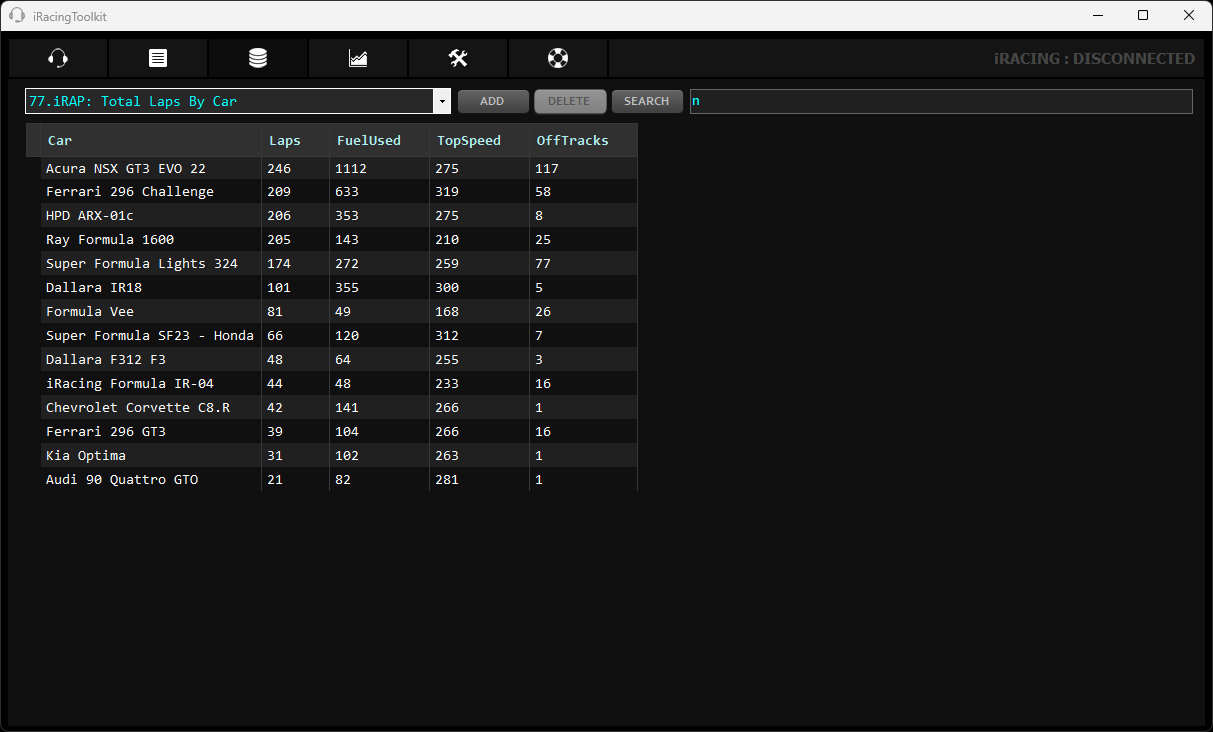
iRacingToolkit also stores data collected during a session in an SQLite database. All updates and queries to the database are performed when you are out of the car so there is no impact to performance while you are racing. There are a set of default reports that are available in the drop down menu. Select any one of these reports to see the data. You can click on column headings to sort the whole table on that column in ascending or descending order. If you know how to write SQL queries you can also add your own reports by clicking the add button. Once added you will see a custom report has been added to the bottom of the list. Simply click in the cell to change the report name and the report query. Default reports cannot be deleted or modified but if you want to create a variation of one then simply highlight the cell containing the original query and press ctrl+c to copy the contents. Then click in the cell of your new custom report and press ctrl+v to paste the query. You can then modify the query and add/remove report fields in the SQL statement as required. There are only 4 tables in the database as shown below:
- Sessions (PK = SessionDateTime)
- Tracks (PK = TrackID)
- Cars (PK = CarID)
- Laps (FK = SessionDateTime, TrackID, CarID)
When writing you own queries, errors are written to the main iRacingToolkit .log. Backups of the database are made every day iRacingToolkit is started and they are deleted after 30 days if you have more than 30 backup files.
Telemetry
Summary
In short all you need to do to see telemetry charts in iRacingToolkit is press ALT+L while in car and on track, do a few clean laps then click on the Telemetry tab in iRacingToolkit.
Details
Telemetry values are extracted from iRacing ibt files. To create iRacing telemetry files simply turn on telemetry logging by pressing ALT + L whilst in car and on track. Note this is the default key binding in iRacing but can be set to anything in the control options of iRacing. After you complete a few laps simply click into the iRacingToolkit telemetry tab and the charts will automagically appear.
Telemetry logging is built-in to iRacing and does not require iRacingToolkit to be running. By default iRacing creates its .ibt telemetry files in C:\Users\[username]\Documents\iRacing\telemetry\. All iRacingToolkit does is check this folder for any new ibt files, converts them into a single file for each lap, and then displays them in a chart. Converting them is a one time process that occurs when you click into iRacingToolkit’s telemetry tab. It doesn’t modify the original ibt files. It keeps track of which ibt files its converted automatically in the following file: iRacingToolkit\Telemetry\!Ignore-ibt-files-already-processed.txt. Any ibt files you don’t want converted can also be added to this txt file manually. You can also remove file names from this file to reprocess ibt files. You can also safely delete everything in \iRacingToolkit \Telemetry\ and it will just recreate everything from the ibt files again.
iRacingToolkit stores its own formatted telemetry in .iat files in iRacingToolkit\telemetry\. iRacing’s ibt files contain multiple laps in a single file. iRacingToolkit parses them out to produce a single file for each lap.
In the iRacingToolkit GUI in the Telemetry Data pane you can select as many items as you like. Note that the more you add the slower the graphs will perform as you scroll the mouse along. If you turn on Annotate then the values will appear as a popup when you hover over the lines. This can slow down the graphs also so best to mostly just eyeball the values on the track map and keep annotate off.
In the pane with the list of track laps selecting a lap will display its telemetry in the charts. To compare 2 laps simply hold CTRL and select another lap. In the graphs the fastest lap data is always shown as the bold line. The lap time delta is always shown between -50 and 50 on the speed graph Y axis and is always scaled to the maximum delta between the 2 laps. The scaled max and min deltas are shown on the speed x-axis when two laps are selected. For example if the absolute maximum delta between the 2 laps at any given point is 0.8 seconds then the delta will scale the graph between -50 (-0.8) and +50 (+0.8). The delta is always comparing the faster lap to the slower lap and therefore will always end with a negative delta (green). As in iRacing, negative delta (green) is when the faster of the two laps is faster than the slower lap and positive delta (red) is shown where its slower.
Note, if you want to deleted a lap from the list, select it and press the delete key.
General tips, info and troubleshooting.
- Every button and setting in iRacingToolkit GUI contains tooltips with detailed information not contained on this page.
- If you find the chat messages a little too small in VR you can increase the text size via the Interface ▶ UI scaling option in iRacing. For a 1440 x 1600 or above HMD I would recommend a setting of 150%.
- If for any reason iRacingToolkit is playing up, you can reset all settings to their default by closing it and deleting the settings folders located in the following directory. This settings folder will be automatically recreated the next time you start iRacingToolkit. C:\Users\[username]\AppData\Local\Bazwise\iRacingToolkit.exe_Url….
- Uninstalling. iRacingToolkit is a portable app and doesn’t install anything. It runs from the folder you extract it to. To uninstall it simply delete this folder and the config folders it creates under your user profile mentioned above.
- If you are driving cars that measure fuel in pounds (lbs) or imperial gallons (imp. gals) note that iRacing only allows adding of fuel in litres (L), gallons (g) or kilograms (k). iRacingToolkit handles this by converting the fuel add amount for imperial gallons to gallons and pounds to kilograms. This means for these units only you will see the fuel add amount displayed with both equivalent units as shown below.
Fuel add 10 k = 22 lbs
Fuel add 10 g = 8.3 ip
This will only be the case when driving cars like the Lotus 49/79 or when you have your units in iRacing set to English and you are driving cars that measure their fuel in weight like the HPDARX. Note that iRacingToolkit will only add the unit of measure suffix when showing the Fuel Add amount in the message shown while driving. At all other times it will not show any suffix and fuel will be displayed in the default unit of measure for the car and your iRacing setting. ie the same unit of measure shown in the iRacing fuel black box window. - The logs show Off track count for each lap. They are not always detected so it may show less than really occurred.
- After each lap you will see average lap fuel displayed as { AveLapFuel 2.2 , 2.1 } . The overall average is the first number and the second number is the fuel used for the lap just completed.
- All required fuel required values shown included safety margin. If its a rolling start then 0.5 of a laps fuel is also added to the total required.
- The Fanatec DD controllers are not working with iRacingToolkit button bindings. I’ve been unable to determine why its not working but other Fanatec wheels seem to work fine such as the Clubsport and CSL.
- Bug in iRacing manual ignition and chat messages. There is a known bug in iRacing where you have manual ignition configured and sending chat messages while in the car. The issue being that iRacing chat momentarily disabled all controller input when you enter chat messages. This manifests itself as a brief ignition cut out when a message is sent via chat. As iRacingToolkit relies on chat messages to function the only way around this is to assign the ignition to a momentary button or switch rather than an always on button. More information is available in the forums here: https://members.iracing.com/jforum/posts/list/3644298.page#11486888
iRacing INI file editor
Allows you to edit all iRacing INI files simultaneously using a simple interface to create a single profile that you can edit, copy and apply to iRacing at any time. This makes it easy to manage multiple config profiles that you may need for different purposes such as VR racing, video editing, test sessions, watching replays, frame rate testing etc. It allows you to create multiple profiles that you can apply to iRacing before its run to save you from having to startup iRacing, make changes, and then restart it for the changes to take effect.
It works by simply loading the existing iRacing INI files into a single table and saving them as a single profile. You can create as many profiles as you want. To apply a profile you just select it and then click the ‘Install’ and the app will backup then overwrite your existing iRacing INI files. iRacing will pickup the new settings the next time it runs.
iRacing loads the following INI files at startup:
- app.ini
- rendererDX11.ini
- rendererDX11OpenVR.ini
- rendererDX11Monitor.ini
- rendererDX11Oculus.ini
- core.ini
- camera.ini
These files are normally located in your documents folder. e.g.. c:\Users\Documents\iRacing\
These files store all the settings for iRacing which you would normally edit whilst in iRacing using the options menu. Some settings do not take affect until you restart iRacing. So normally you have to start iRacing go into the menu make your changes, quit and then restart iRacing.
When you first click into the INI tab it loads all the settings from the above files into a single table and collapses the settings into their group headings. Headings are highlighted in Gray. To Edit any settings just click the heading which will expand out all the settings below it. Click the value you want to change and type in the new value for the setting. Press enter and the cell will turn yellow to indicate a value has been changed. Make as many changes as your want. Once you have finished making changes simply click Install to update iRacings INI files with the new settings.
You will be shown a prompt to let you know where the existing INI files have been backed up to just in case you want to restore them. Backup INI files are stored in \iRacingToolkit\Backup
Profiles are just a group of ini text files stored in \iRacingToolkit\Profiles\[ProfileName]
Using profiles
On first use there is only 1 profile called iRacing Current. This profile always loads the current and active iRacing settings from the ini files in c:\Users\Documents\iRacing\ folder. When you make changes you can only click install which will immediately update iRacing’s current settings.
To create additional profiles simply click the More then CopyTo button and provide a name for the new profile.
A profile is simple a collection of iRacing ini text files. The iRacing Current profile is simply the current ini files in the c:\Users\Documents\iRacing\ folder. When you create a new profile all that’s happening is that the collection of ini files is being copied to the iRacingToolkit\profiles\profilename folder. When you then edit and save changes to the settings in this custom profile all changes are being saved to the collection of ini files in this profile folder and the current iRacing ini files in the c:\Users\Documents\iRacing\ folder are not affected. When you select a custom profile and click install the ini files from this custom profile folder are copied over the existing current iRacing ini files and hence become active the next time you start iRacing. Note that any changes to settings made while in iRacing will only affect the iRacing Current profile and is in no way linked to your custom profile settings.
When you edit a profile that is not the the iRacing Current profile you can save the settings without actually installing them in iRacing. Note, if the iRacing Current profile is selected the Save button will be greyed out and only the install button will be available. This is because you are editing the current active ini files of iRacing so saving changes is the same as installing another set of ini files. You can make as many profiles and setting changes as you like. Whenever you want a profiles settings to become iRacings current settings just select the profile and click install.
INI Editor tips
- Selecting a profile loads all the settings from \iRacingToolkit\Profiles\ into the table. If you select the iRacing Current profile it will load the current active settings directly from iRacing.
- Use the Reload button only if you want to discard any changes you’ve just made in the main table and reload the ini files again from disk and into the table for the selected profile.
- If you are editing iRacing Current and then select another profile all changes will be lost.
- Right clicking any where on the main table will show a context menu that allows you to expand or collapse all the settings. There is also a menu item called “Google it” which will start your default browser and search for the selected text + iRacing on the web.
- Any comments you add to the description of a settings will also be saved.
- iRacing saves option changes made in-game to the ini files immediately after you click Quit
- All changes to a profile are logged if you need to check what changed.
- Every time you click the install button a backup of the existing INI files is copied to the Backup folder.
- Every time you click the save button a backup of the profiles ini files are saved in the profiles// folder
- Any backup ini files that are older than 30 days are deleted by iRacingToolkit on start-up.
Feedback
If you come across bugs, have suggestions or would like a feature please feel free to use the anonymous feedback form located here. Most of the testing and development was done with VR road racing and while it should work fine with other formats there could be some issues that I’ve not come across. Note that this app was created in my spare time so while I’ll try to fix bugs quickly.